How to Connect Ledger to MetaMask
RateMyWallets is reader-supported. When you buy through links on this page, we may earn a commission at no extra cost to you.
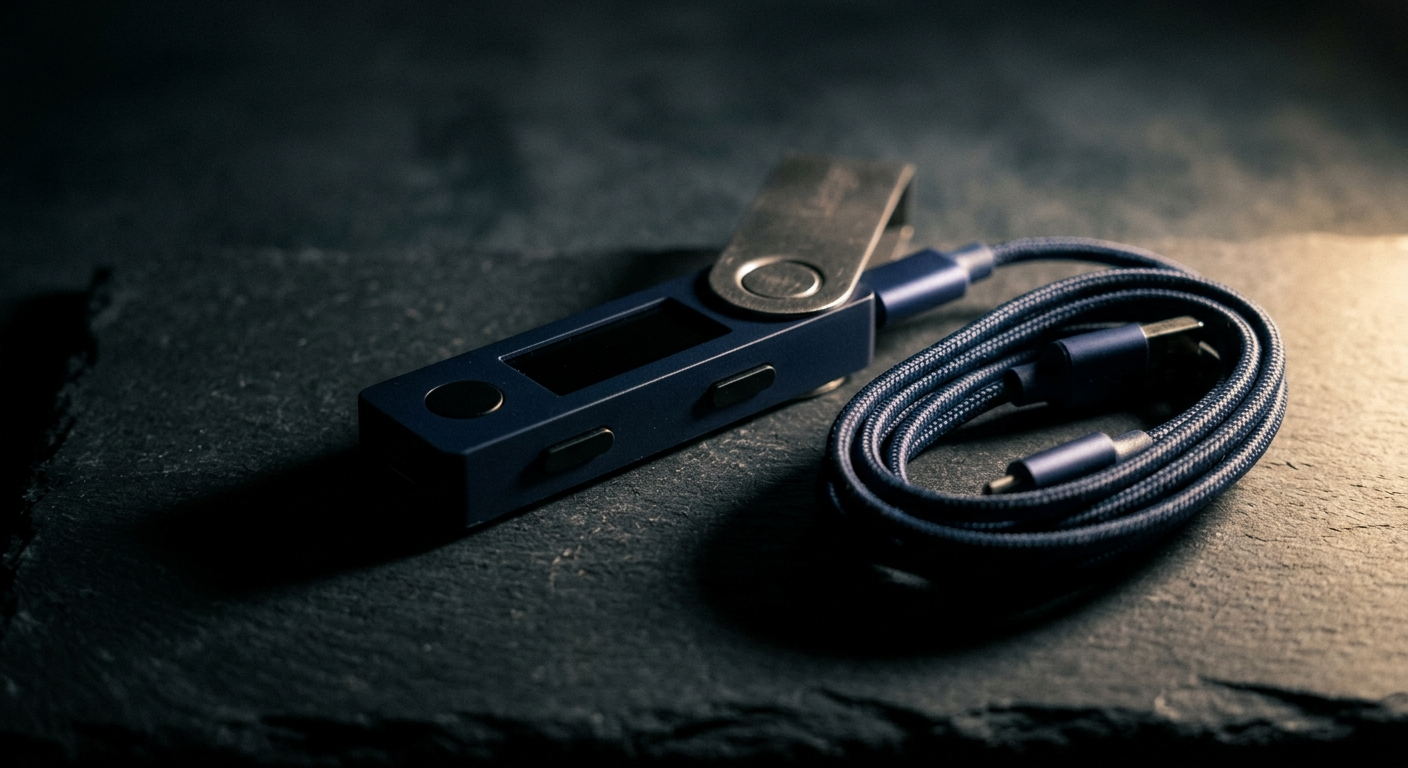
By the end of this guide, you will use MetaMask as the visual interface while your Ledger keeps your private keys, the secret cryptographic codes that prove ownership of your digital assets, safely offline. Every transaction will still need your physical approval on the device. This guide covers the connection in five steps.
What You Need Before You Start
Before we begin, you need a few things ready. First, make sure you have a Ledger hardware wallet, which is a physical device that stores your private keys safely offline. The device must already be set up with a PIN and a securely backed up seed phrase. You can review our guide on how to back up your crypto if you need assistance with that step.
Next, ensure you have the MetaMask browser extension installed directly from metamask.io only. Finally, make sure Ledger Live is installed on your computer and updated to the latest version.
How to Connect Ledger to MetaMask
- Update Ledger Live and install the Ethereum app via My Ledger in Ledger Live.
- Close Ledger Live completely. Ledger Live and MetaMask conflict when both are open, and this is the most commonly skipped step.
- Plug your Ledger into your computer via USB, enter your PIN, and open the Ethereum app on the device until the screen shows Application is ready.
- In MetaMask click the account icon in the top right corner, select Connect Hardware Wallet, select Ledger, and click Continue.
- Select your account from the list and click Unlock. The account appears in MetaMask with a LEDGER tag.
Troubleshooting note: If MetaMask cannot find the device, go to MetaMask Settings, select Advanced, and enable WebHID. Clearing your browser cache also resolves most connection issues.
One Rule You Must Not Break
You must never import your Ledger 24-word seed phrase into MetaMask using the Import an existing wallet feature. Doing this turns your Ledger into a hot wallet, which is a software application connected to the internet that stores your private keys, and removes all the hardware security you gained. Keeping your seed phrase completely offline is known as cold storage, which means keeping your cryptocurrency access disconnected from the internet entirely. If MetaMask ever asks for your Ledger seed phrase, close the application immediately.
By connecting these two tools, MetaMask serves as the interface and the Ledger remains your security layer. Because your keys never leave the device, every transaction still requires physical approval on the Ledger itself. For a full comparison of hardware and software options, read our guide on hardware vs software wallets. You can also explore RateMyWallets Reviews to find the right wallet for your security needs.